 Corral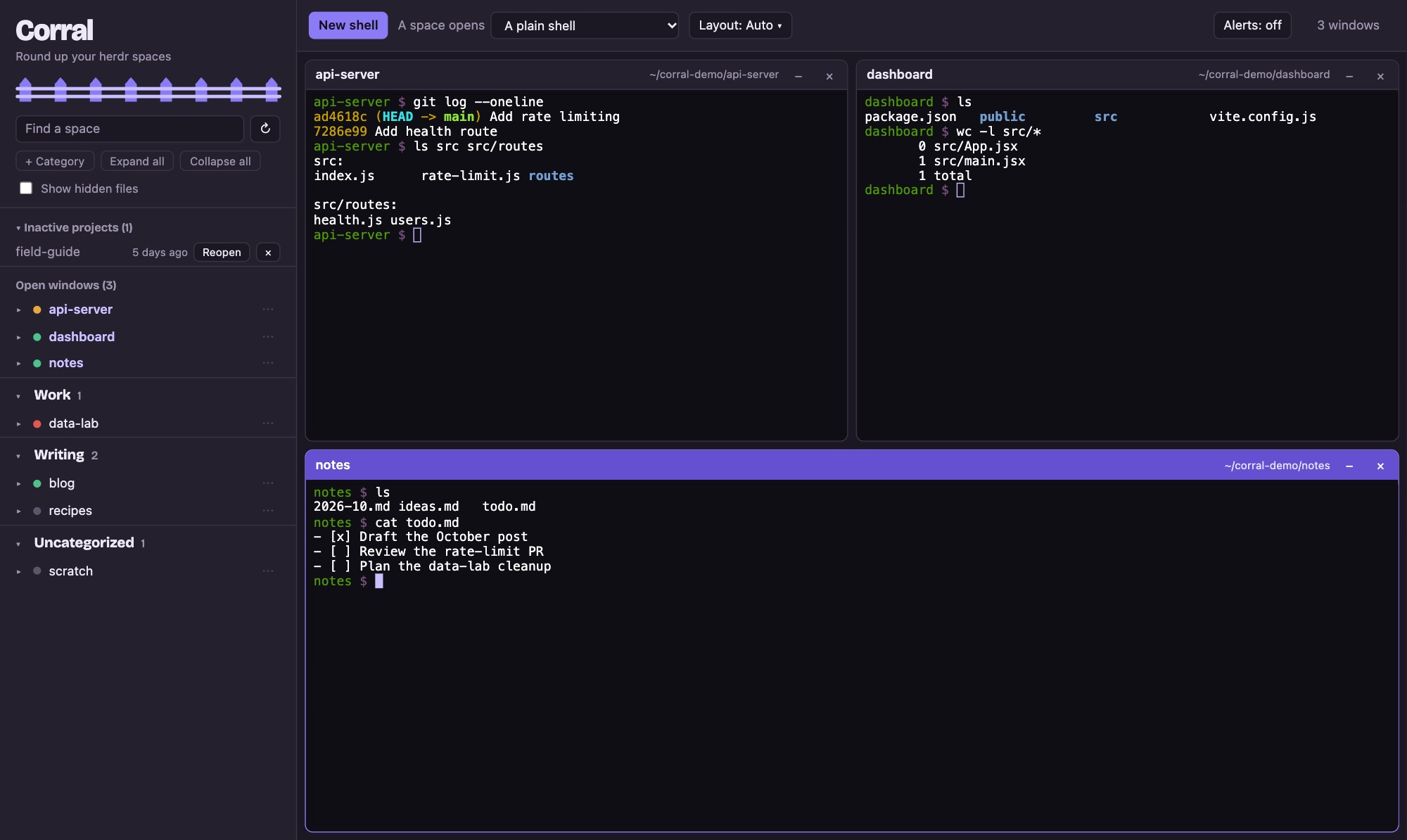
The problem it solves
Lots of projects, lots of agents, one screen
herdr keeps your projects as spaces and tracks what each agent is doing. Corral is for the moment you want to actually sit down and work across several of them: see them side by side, start or resume Claude Code with one click, and not lose anything when a tab closes.
"I have three agents running in three repos."
Watch them side by side
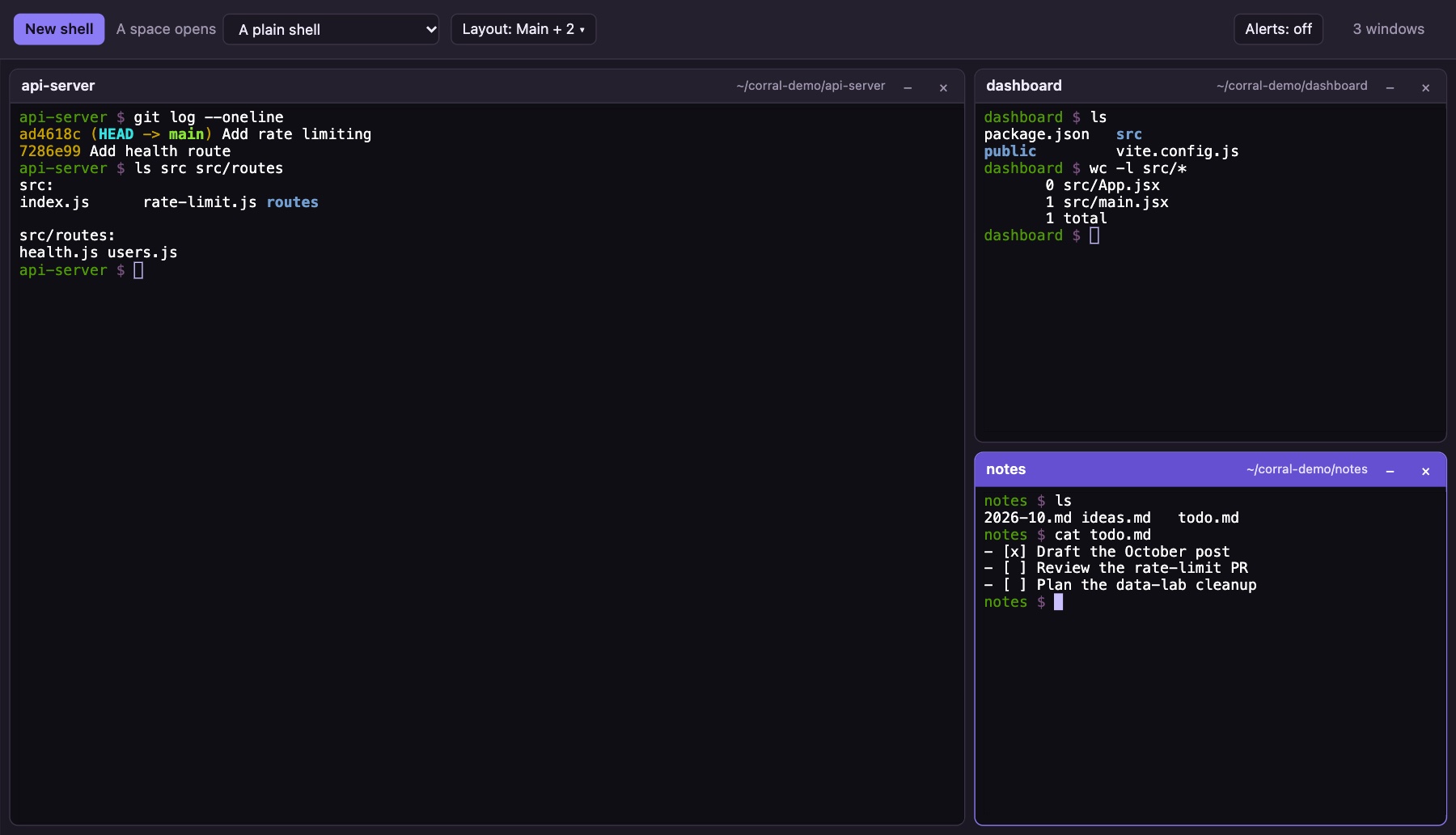
Open each space as a window and tile them with a layout like Halves, Main + 2, or 3 x 3. Status dots in the sidebar show which agent is working, idle, or blocked, so you know where to look next.
"Where was I in that project yesterday?"
Resume in one click
Set a space to open with "Claude Code, last session" and a click runs claude --continue in the
right folder. When Claude exits, the shell stays open in the same place.
"I closed the tab by accident."
Terminals that survive
Every shell lives in its own tmux session. Closing the tab, reloading, or restarting Corral leaves the work running, and reopening the page puts each window back where it was.
"My Mac restarted, and all my sessions are gone."
Restore them
Corral keeps a backup of the open windows and the Claude Code conversation in each. After a restart, a Restore button reopens every window in its folder, resuming its conversation.
"I stepped away, and Claude is waiting on me."
Answer from your phone
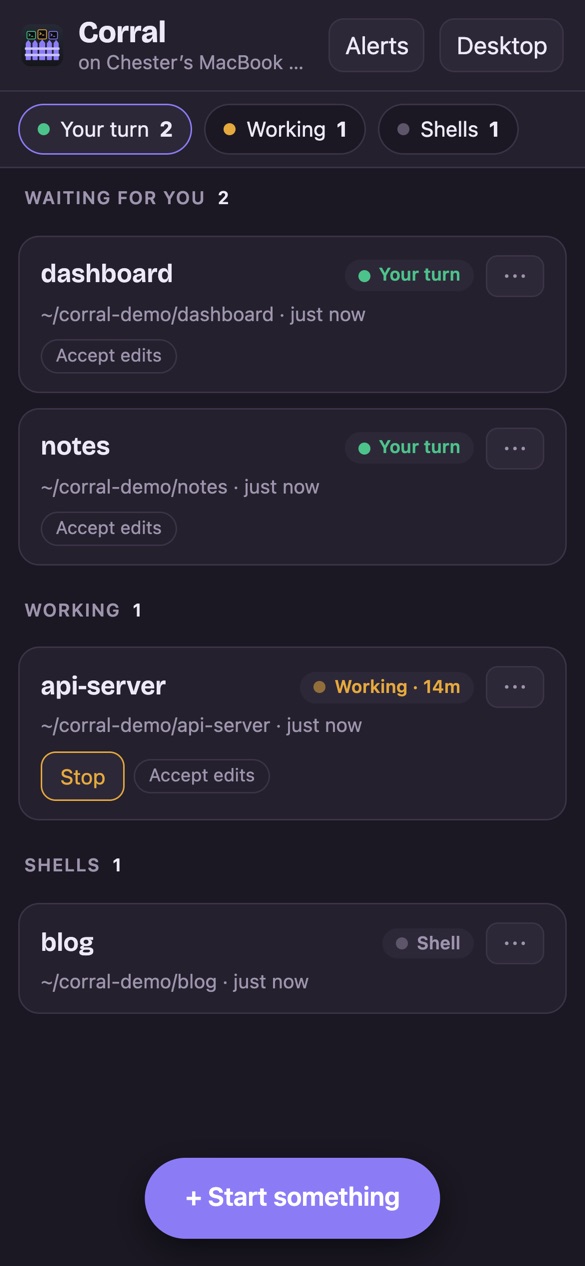
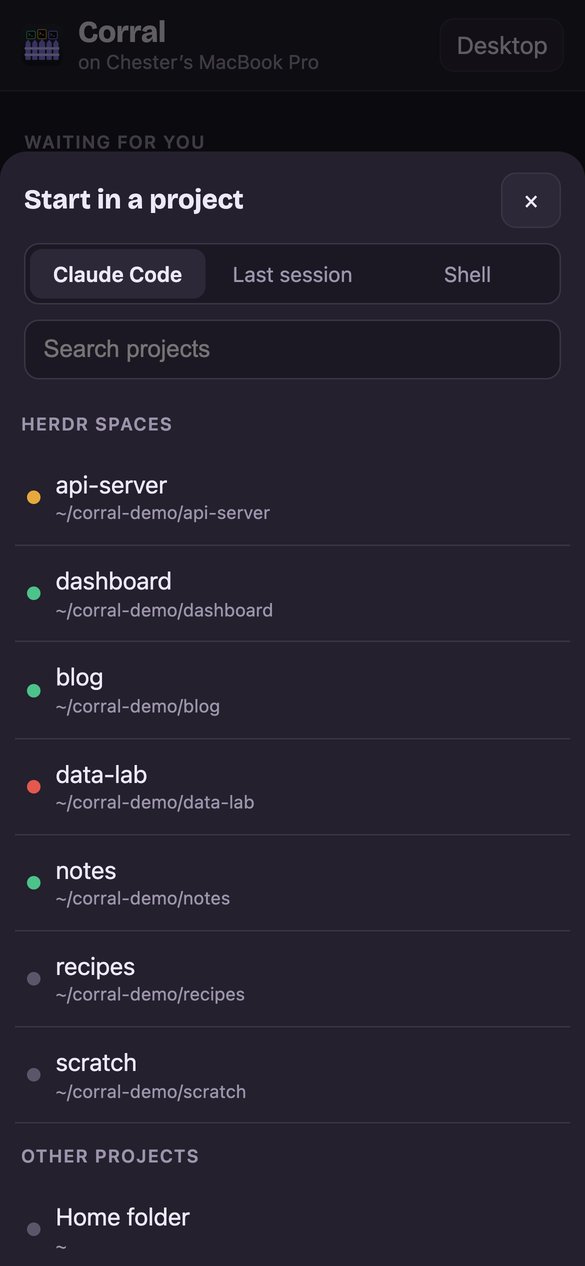
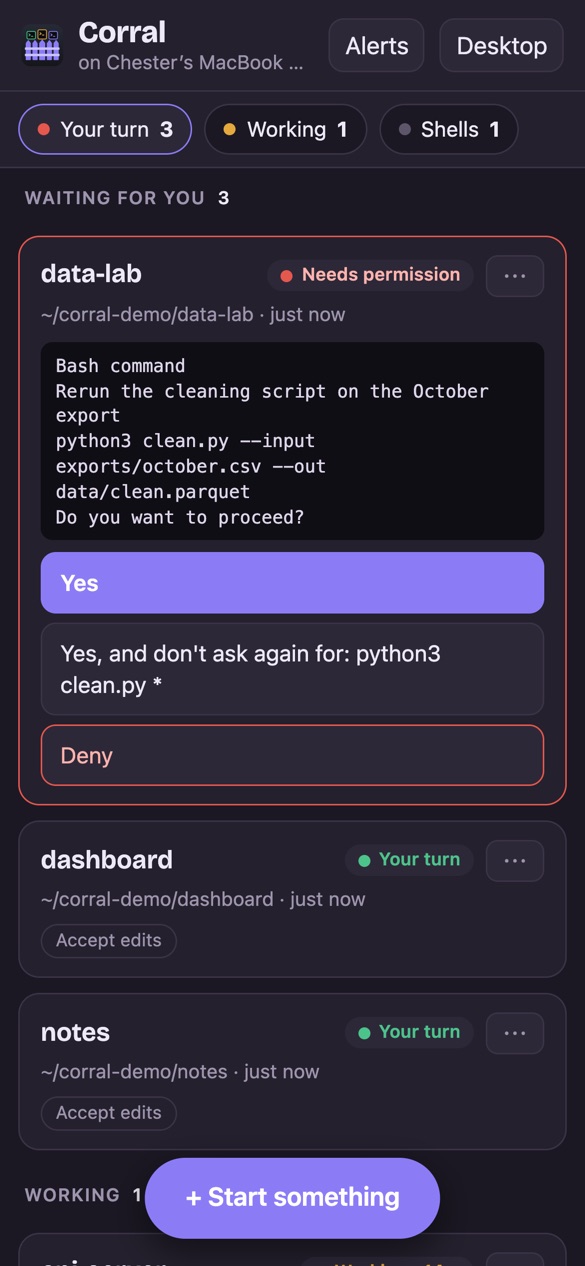
Through Tailscale, your phone lists every window on the Mac, with the ones waiting for you on top. Tap one to read the conversation, reply, dictate, or send a photo, allow or deny a permission prompt, or start Claude Code in another project. A notification tells you when a session needs you.
"I have forty projects and can never find the one I want."
Sort them into groups
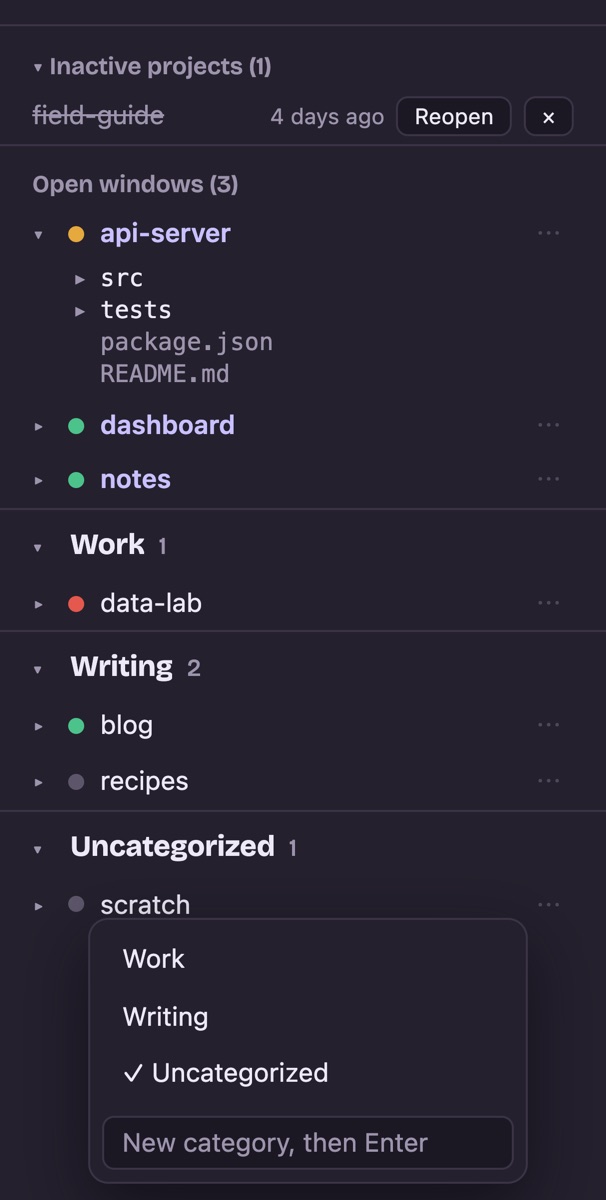
Make categories like Work or Writing, then right-click or drag spaces into them. Select several at once, or search and move every match. Each move can be undone.
"I closed that herdr space, and now it's gone."
Bring back inactive projects
Corral remembers every project folder it has seen. When a space disappears from herdr, the project moves to "Inactive projects" with a Reopen button that recreates the space.
"What's in this repo again?"
Peek at the files
Expand any space for a file tree, limited to that project's folder. Click a file to open it in a Mac app: Corral asks which one until you set a default for that type of file.
What you get
A browser workspace for herdr
Corral does not replace herdr. herdr keeps managing your spaces and agents; Corral reads herdr's list of spaces and opens its own terminals for them.
Every space in a sidebar
The sidebar lists each herdr space with its agent status, a search box, your categories, and the projects that are no longer open in herdr.
- Click a space to start Claude Code, Claude Code's last session, or a plain shell in its folder. A space keeps one window; clicking it again brings that window forward.
- Right-click a space, or use its ⋯ button, to file it under a category, or make a new one on the spot.
- Cmd-click or Shift-click to select several spaces and move them together.
- Expand a space to browse its files. Click one to open it in a Mac app, chosen from the apps macOS offers for it; tick "Always" to make that the default for the file type. Right-click to choose again.
Layouts for your windows
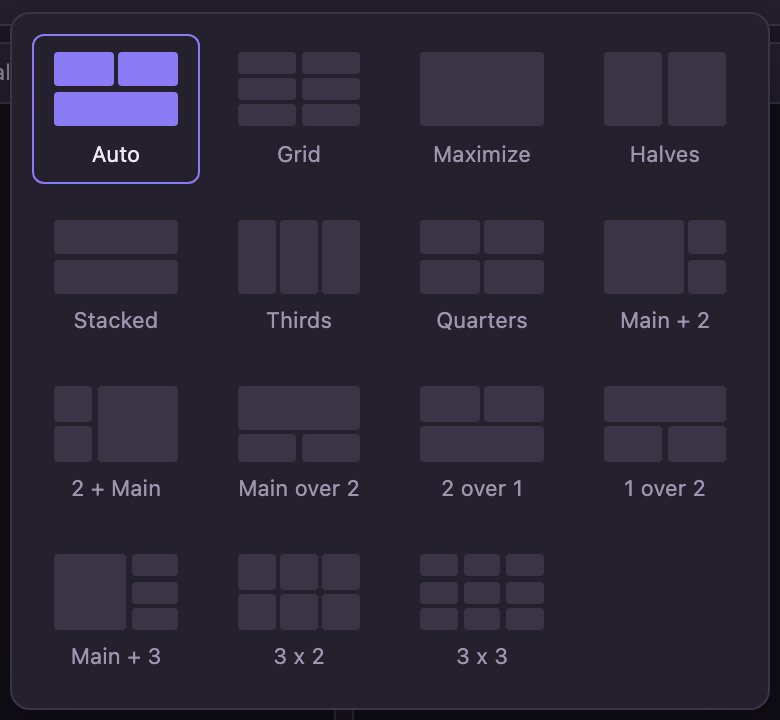
In the spirit of Sash, a layout is a set of zones, and each window sits in one. Auto picks a tiling from how many windows are open and the shape of the screen.
- Halves, Thirds, Quarters, Main + 2, Main over 2, 2 over 1, Main + 3, 3 x 3, and more.
- A plain grid with the number of columns and rows you choose.
- Drag a window's title bar onto another zone to move it there or swap.
- Minimize a window to the bottom bar. It keeps running, and one click brings it back. Drag the bar's top edge to make it bigger or smaller.
Real terminals, not a preview
Each window is a full terminal (xterm.js) connected to a shell on your Mac. Run Claude Code, a dev server, git, or anything else you would run in Terminal.
- Closing a window ends its shell. Minimizing, reloading, or closing the tab does not.
- Attach to any Corral shell from another terminal with
tmux -L corral attach -t wt-<id>. - Links printed in a terminal are clickable.
- Drag across text to copy it. Option-drag makes a browser selection instead.
- After a Mac restart, Restore reopens the windows you had, each resuming its Claude Code conversation.
Remote control
Answer Claude from your phone
With Tailscale, the private network between your own devices, Corral becomes a remote control for every terminal on your Mac. See which Claude Code sessions are waiting for you, allow or deny what they ask, answer them, start new ones, and read back what happened, from your phone, a tablet, or another computer. The phone can even get a notification when a session needs you.
Chat or Terminal
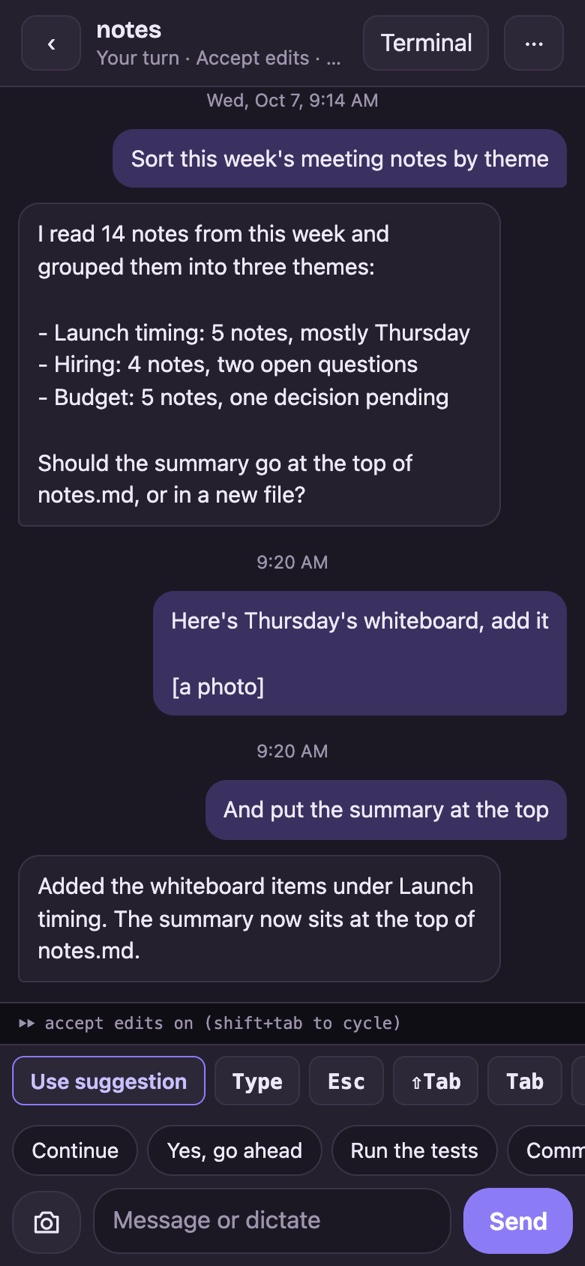
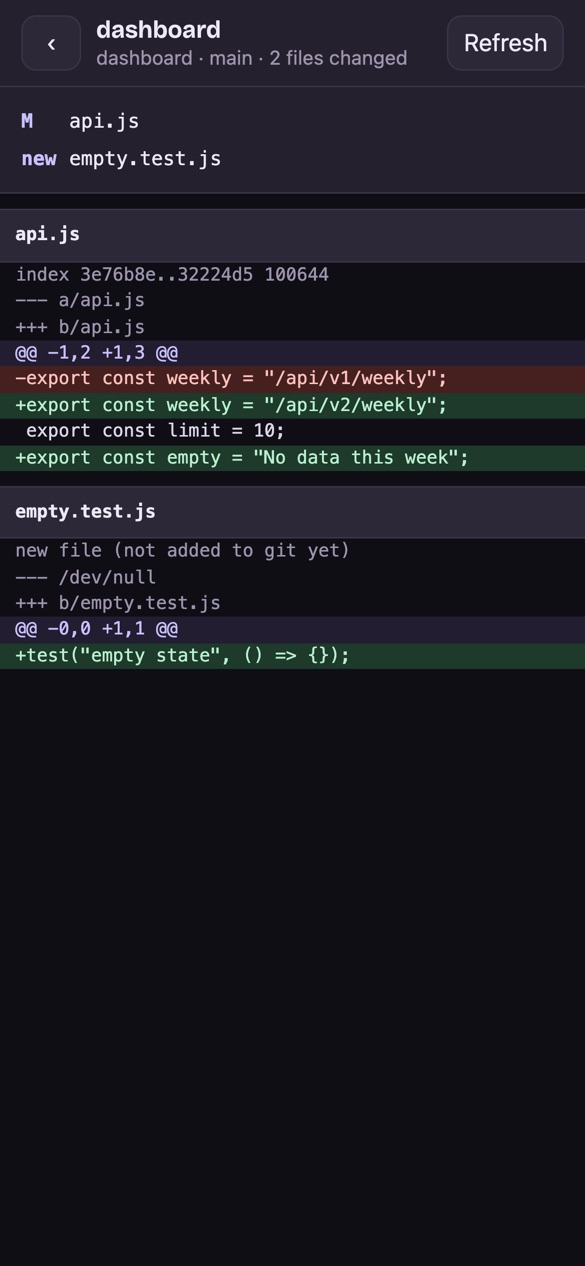
A Claude Code window opens on its conversation: your prompts and Claude's replies as chat bubbles, with Claude Code's status lines under them. Terminal switches to the full terminal, and Chat switches back. The phone remembers your choice, and the keys and message box work in both.
Notifications
Tap Alerts to get a push when a permission prompt opens or Claude finishes its turn, even with Corral closed. By default nothing is sent while you are at the Mac. Mute any one window from its menu. On an iPhone, this needs Corral on the Home Screen.
From the card
A working session shows how long it has run and a Stop button. Each card shows the permission mode, and its ⋯ menu has Last reply, Next mode, Mute, Rename, and Close. Press and hold a card to read Claude's last reply.
Quick replies and swipes
Chips such as Continue, Run the tests, and Commit and push fill the message box in one tap. Swipe across a terminal to move to the next window.
Mac stays awake
While a window is working or waiting on a prompt, Corral keeps the Mac from idling to sleep, so the phone can still reach it. Closing the lid still sleeps.
On the Mac too
The desktop page shows the same Allow and Deny buttons in each window, and its Alerts button sends a desktop notification when a window needs you.
Send a photo
The camera button sends a picture to the Mac and pastes its path into Claude Code, which attaches it to your next message.
Keys a phone lacks
Use suggestion, Esc, Shift-Tab for Claude Code's modes, Tab, Ctrl, ^C, the arrows, Enter, and 1, 2, and 3 for Claude Code's menus.
Type or dictate
The message box works with the keyboard's microphone, and a message with several lines goes in as one.
Like an app
Add it to your Home Screen and it opens full screen. Restore brings back the windows from before a Mac restart.
Compared with Claude Code's Remote Control (/rc): Remote Control needs no setup
beyond signing in, and reaches the sessions you turned it on for, through Anthropic's servers. Corral needs
Tailscale on both devices, and then shows every window on the Mac without turning anything on (Claude Code and
plain shells alike), lets you start new ones in any project, and reaches your Mac over your tailnet, encrypted
end to end.
Set it up
- Install Tailscale on the Mac and on your phone from tailscale.com/download, and sign in to the same account on both.
- Turn on HTTPS for your tailnet. In the Tailscale admin console, open the DNS page, make sure
MagicDNS is on, and under HTTPS Certificates choose Enable HTTPS.
Tailscale's certificates are recorded in a public log that includes the machine's name, so rename the Mac in Tailscale first if its name says anything private.
- Have Tailscale forward to Corral. With Corral running, run this once on the Mac. If HTTPS is not on
yet, it prints a link to turn it on.
$ npm run tailscale # tailscale serve --bg --https=8443 http://127.0.0.1:8777
- Open it on the phone. Corral's On your phone button copies the address, which looks like
https://<this Mac>.<your tailnet>.ts.net:8443/m. Send it to your phone and open it. - Keep it on your Home Screen. In Safari, use the Share button and choose Add to Home Screen.
- Turn on notifications (optional). Open Corral from its Home Screen icon, tap Alerts, then Turn on notifications. Send a test checks the whole path.
Only you get in. Corral still listens on 127.0.0.1 only; each request through Tailscale must
carry your Tailscale login, which Tailscale adds and a device cannot fake (details under
Security). To turn it off, run tailscale serve --https=8443 off.
How it works
One small Node process
server.js serves the page, runs each shell in a pseudo-terminal attached to a tmux
session, and streams it to the browser over a WebSocket. Nothing leaves your machine, except to your own devices
when you turn on Tailscale access.
xterm.js draws each terminal and sends your keystrokes.
Node on 127.0.0.1:8777, with ws for the WebSocket.
A pseudo-terminal per window, attached to its tmux session.
A private tmux server that keeps every shell alive.
herdr api snapshot, and each space's project folder from
herdr's ~/.config/herdr/session.json. Corral polls herdr every 30 seconds, so it notices a space that
closes even while no page is open. herdr's session files are not a public API, so a future herdr release could
change them. Another device reaches Corral through tailscale serve, which forwards to the same
loopback address; each device gets its own tmux client, so tmux sizes a window for whichever device typed
last.Install
Run it in a minute
$ git clone https://github.com/ismayc/corral.git
$ cd corral
$ npm install   # also makes node-pty's helper executable
$ npm start     # then open http://127.0.0.1:8777
- macOS. That is where Corral is built and tested. Linux may work but is untested.
- Node.js, tested with Node 24.
- herdr on your
PATHor at~/.local/bin/herdr, tested with herdr 0.9.3. - tmux, recommended (
brew install tmux). Without it, Corral still works, but shells end when the server stops. - Claude Code, if you want a click to start it.
| Variable | Default | What it does |
|---|---|---|
CORRAL_PORT | 8777 | Port to listen on (always on 127.0.0.1) |
CORRAL_TMUX_SOCKET | corral | Name of Corral's private tmux server |
HERDR_BIN | ~/.local/bin/herdr, else herdr on your PATH | Path to the herdr command |
CORRAL_SORT_BIN | scripts/herdr-sort-spaces | Script that re-sorts herdr spaces after a Reopen |
CORRAL_TAILSCALE | on | Set to 0 to refuse every request through Tailscale |
CORRAL_TAILSCALE_PORT | 8443 | The HTTPS port tailscale serve uses for Corral |
CORRAL_TAILSCALE_USERS | The login that owns this Mac in Tailscale | Comma-separated Tailscale logins allowed in |
To use Corral from your phone or another computer, follow the remote control setup.
Security
Strict about who can reach it
A browser terminal can run any command by design, so Corral only answers your own machine and your own Tailscale login, and never takes a command from the page.
Loopback only
It listens on 127.0.0.1 and has no login of its own. Do not expose it
on another interface or behind any proxy other than tailscale serve.
Your tailnet, your login
Through Tailscale, a request must name this Mac's tailnet
address and carry an allowed Tailscale login, which tailscale serve sets and a sender cannot fake.
A public Funnel request carries none, so it gets nothing.
Other sites cannot drive it
Every request needs a loopback Host header,
which blocks DNS rebinding, and every change and terminal connection needs a loopback Origin.
A fixed menu of programs
The page can choose Claude Code, Claude Code with
--continue, or a shell. It never sends a command.
Only apps macOS offers
Opening a file hands it to macOS open with an app
that macOS lists for that file, checked again each time, or shows it in Finder. The page cannot name any
other program.
Names, never contents
The file tree lists names only and refuses any path whose real location, after resolving symlinks, is outside the project.
No borrowed identity
Started from inside Claude Code or a herdr pane, Corral strips
that session's variables (CLAUDE_CODE_*, HERDR_*, TMUX*) from every shell it starts.
Answers only to an open prompt
Allow and Deny send one key, and only after Corral has read Claude Code's session file and the screen again and found the same prompt still open with that answer. An answer names its prompt, so it never lands on a newer one. A card can otherwise send only Esc or Shift-Tab.
Stays on your Mac
A few small files in ~/.local/share/corral, your browser's
local storage, and a private tmux server. The page loads no outside resources. If you turn on notifications,
each one goes through your phone's push service, encrypted so that the service cannot read it.
Limits
What it does not do
herdr's own terminals
herdr's API offers snapshots and events but no live byte stream, so Corral opens its own terminals rather than showing the ones inside herdr.
Scrollback after a restart
After a Corral restart, a window shows the current
screen. Older scrollback stays in tmux (tmux -L corral attach).
Undocumented re-sort
Reopen re-sorts herdr's spaces alphabetically through an
undocumented herdr method, workspace.move_block.
Prompts read off the screen
Allow and Deny read Claude Code's permission prompt from the terminal (tested with Claude Code 2.1.292). If a release changes its look, answer in the terminal.
Awake, not lid-proof
Keeping the Mac awake blocks idle sleep only. A closed lid still sleeps, and then the phone cannot reach it.